A similar method is used when saving the high scores, as the method for reading the high scores. Instead, to save the high scores the external file is written to, using “fileHandle = fopen(“highscores.txt”,”w”);”.
This line of code opens the relevant file for writing and I have then used “fprintf” to write a string (the player name), tab a space, an integer (the player score) and created a new line. To end this command, I have then used the code line “fclose(fileHandle);”.
Showing posts with label enter high score. Show all posts
Showing posts with label enter high score. Show all posts
Thursday, 24 July 2008
Sort the high scores
As a player adds their name and score to the High Score Board the list of highest scores must be resorted into order. The highest score list should have the highest high score at the top and the lowest high score at the bottom.
In the code I have set three integer variables and three character strings, followed by a set of if and else statements to sort the order of the score board once a new high scorer’s name and score have been added to the list.

In the code I have set three integer variables and three character strings, followed by a set of if and else statements to sort the order of the score board once a new high scorer’s name and score have been added to the list.

Enter High Score Board
I have decided to include the following items in this screen:
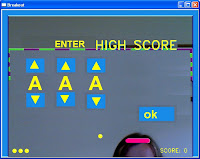 Here is the initial design for the screen, created on the computer.
The design of each button includes:
There are three types of button:
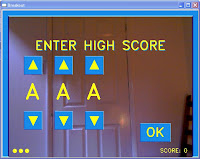 The final version of the Enter High Score Board.
- Title of screen
- Three letters that can be changed
- An OK button to confirm the name and move on to the next screen
 Here is the initial design for the screen, created on the computer.
The design of each button includes:
- Main colour fill
- Highlight colour along the top edge of the button
- Highlight colour down the right side of the button
- Lowlight colour along the bottom edge of the button
- Lowlight colour down the left side of the button
There are three types of button:
- Upper button
- Above the letters
- Go up one letter when the crosshair is held over the button for two consecutive frames
- Lower button
- Below the letters
- Go down one letter when the crosshair is held over the button for two consecutive frames
- OK button
- Larger than the other buttons so that it is visually obvious
- Has “OK” written on it
- When crosshair is held over the button for two consecutive frames, allows the name to be saved to the external text file, the order of the scores and names are reorganised in the external file and the View High Score Board screen is then displayed.
 The final version of the Enter High Score Board.
Wednesday, 11 June 2008
State transition
Working from the initial state transition diagram that was presented in the project proposal and presentation, I coded eight states for the game. The states take the player through the game, linking one state to the next depending on the outcome of each game. For example, the game over state may lead to the enter high score state (if the score is greater than the lowest high score) or to the view high score state (if the score is lower than the lowest high score).
The states are:
The states are:
- Initialisation
- Startup
- Countdown
- Playing
- Game over
- Congratulations
- Enter high score
- View high score
Subscribe to:
Posts (Atom)
